Sidious Linux includes a basic set of utilities and applications. Others free software can be added by compiling the source code with the (standard) gcc compiler. Some programs which come with Sidious are custom (the login screen and the print dialog for example) but most are standard, and you should refer to their own documentation instead of this manual. The most commonly used programs (those which appear on the default toolbar) are shown here just to give a quick overview of what is installed with Sidious Linux.
See section ![[*]](cross_ref_motif.gif) of this manual for information on reconfig.
of this manual for information on reconfig.
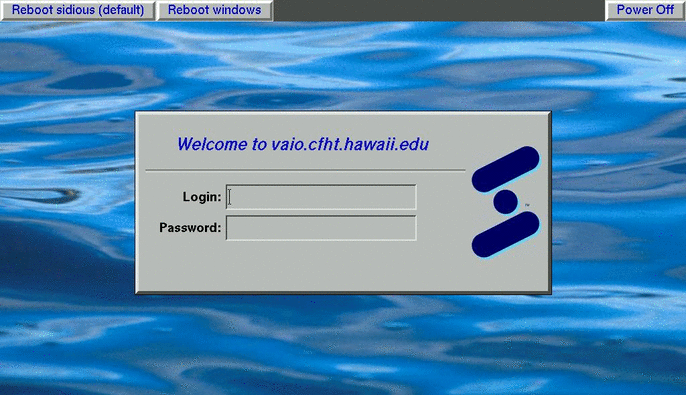
When activating the X-Server in reconfig, it is possible to
select a login screen by setting one of the X-Server fields to
xdm. Additionally, a reconfig option exists to enable
the buttons shown at the top of figure . The buttons
on the top-left are generated automatically from any labels found
in /etc/lilo.conf. If you have configured your system to
dual-boot into Windows and Linux as described in section ,
buttons will appear to (re)boot directly into the operating system you
choose. (When the system is rebooted a second time, it will go back
to whichever is marked as ``default'').
A button on the top-right lets you power off the system.
To log in, enter a user name and password. Unless you have enabled
NIS and are on a network with a ypserver, this must be a username
and password that you have added with adduser as described
in section .
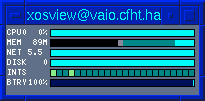
A slightly modified version of the `xosview' program is displayed in the toolbar under X-Windows. The modifications include temperature display, wireless network strength, and enhanced memory usage display (dark grey represents ``inactive_dirty'' cache memory, which includes files in "tmpfs" in /tmp and /var, and light grey represents total pages calculated from /proc/slabinfo, most of which, along with "Cached" memory, can be freed if memory becomes tight. The number of megabytes shown in the numeric label is the approx. number of MB which are probably un-freeable. A more precise description of memory usage is not possible at the moment because the Linux kernel's virtual memory model is largely undocumented.) The lines and meaning of colors is as follows:
| Label | Numbers | Colors |
| CPU | percent cpu used | Black=System calls time / Dk.Grey=User process time / Dk.Green=Nice time |
| MEM | used-slab/cache | Black=Process memory / Dk.Grey=inactive_dirty / Lt.Grey=Slab(cache) / Dk.Green=Cache |
| DISK | i/o rate | Black=read / Red=write data rate (KB or MB/sec) |
| INTS | not applicable | Green blink means an interrupt happened on that IRQ |
| WIFI | percent sig. quality | Black=noise Green=signal quality |
| BTRY | percent battery left | Blue bar indicates charge percentage. |
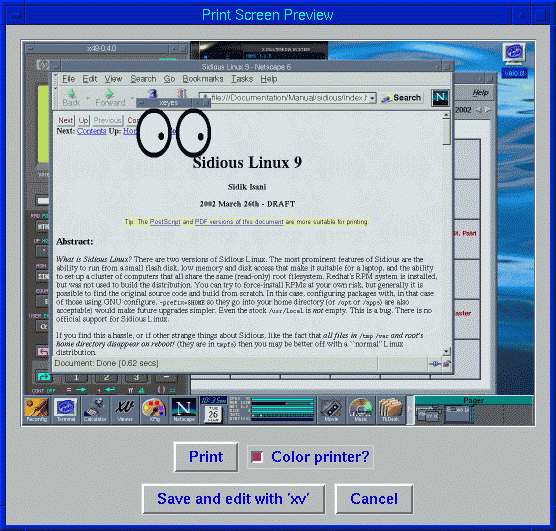
Figure shows the custom print-screen interface in
Sidious Linux. It is accessed by pressing the print-screen key.
Individual windows can also be captured by clicking on their left
window frame widget, or by pressing SHIFT+Print-Screen.
When you access the print-screen function, a preview of what will be printed is shown in the top part of the dialog. Nothing is printed when the print-screen key is pressed. The ``Print'' button in the preview window acts as a confirmation to avoid inadvertently sending screens or windows to the printer. (Press ``Cancel'' if you hit Print-screen by accident.) If you have a color printer, check the ``Color printer?'' option before clicking print.
On this same dialog, it is also possible to load the screen capture
into ``xv'' (see section ) and crop out a region, manipulate
the image, or save it to disk instead of printing it. Note that ``xv''
also has its own screen/window capture capability.
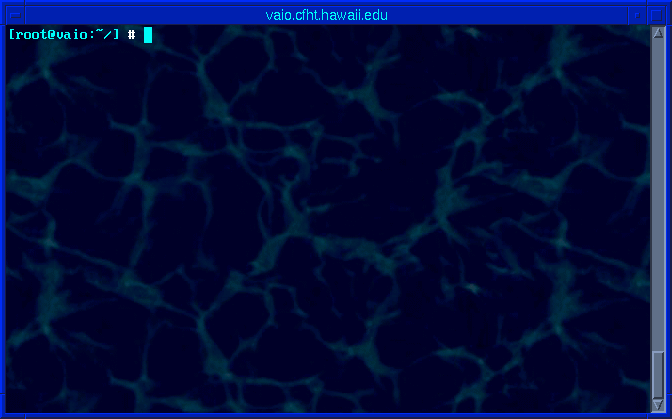
The default terminal is an old version of Rxvt which has been tested (purify'd) at CFHT, and enhanced to deal with 8-bit displays that have no free colors. The standard X11R6 xterm program is also installed, as is ``aterm'', a much newer terminal, derived from rxvt. Both of these have support for a mouse scroll wheel, while the old rxvt does not. XTerm also has a Tektronix graphics terminal emulator, which some graphing programs may require.
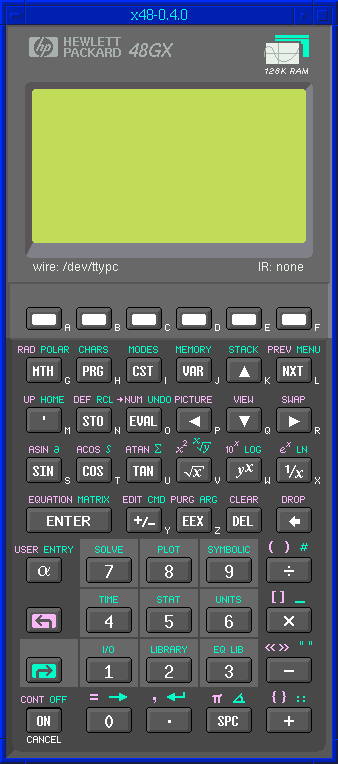
If you prefer RPN calculators, do not use xcalc's RPN mode. It's buggy! The x48 calculator is very reliable and accurate, on the other hand. This is because the calculator is an emulator of the real chip inside Hewlett Packard's calculator, and it runs the actual firmware from the real calculator. Before going completely dead, HP's calculator division made a nice move to release the firmware, so it's all legal.
For those who like ``normal'' calculators, type ``xcalc''.
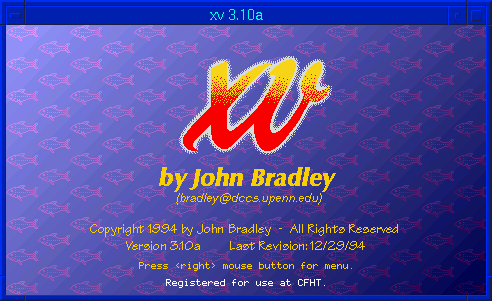
This version of ``xv'' is 3.10a plus all patches that were available, including one for PNG support. The newer 3D fish default image was replaced with the older one to reduce the size of the program.
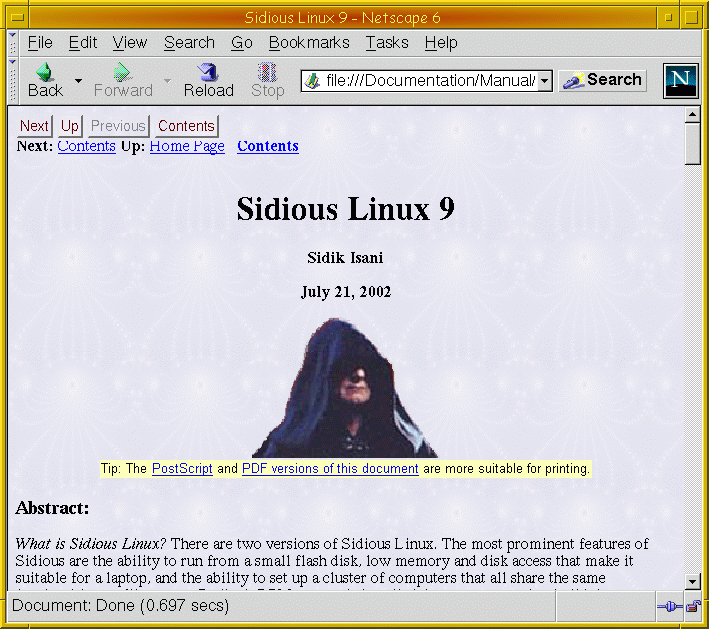
There are several versions of netscape in the distribution. The default one
depends on a reconfig setting. To force a specific version,
you can always type netscape4 or netscape6. Figure
shows the default look of Netscape 6 in Sidious Linux. By default, all
of the side panels, extra-extra tool bars, advertising, and other clutter
have been removed. I also made the old style ``chrome'' the default, because
I think it looked cleaner. So netscape6 in Sidious looks very much like
netscape4 used to look. Of course, you can edit the preferences and change
it to look however you like. Only the default profile settings were changed.
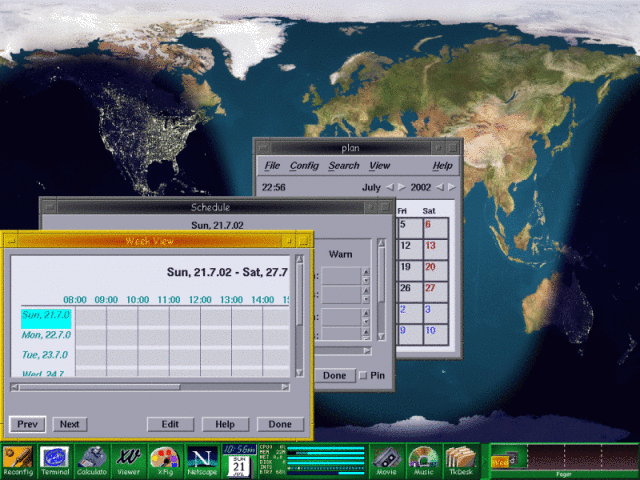
The day planner plan can be launched by clicking on the clock in the toolbar, or typing plan at the command line. There is also a command line program, cal, which only prints the days of the month in a text window.
In the background of this figure is xplanet, which can be used to show which parts of the world are in daytime and which are in the dark. Try tkxplanet for a graphical interface to this utility.
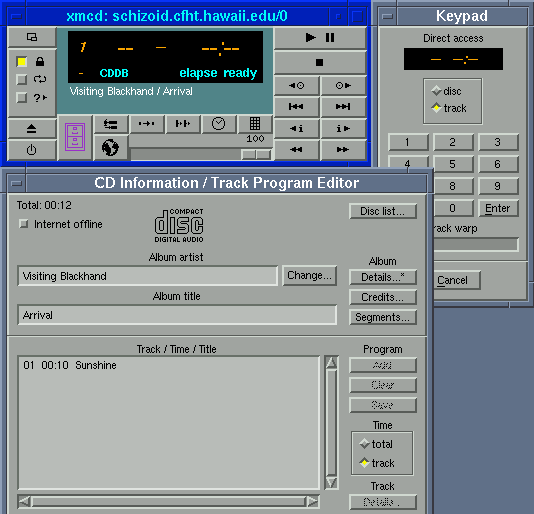
The command line version of this CDDB-connected CD player is also available. Try cda visual to run it in a terminal window. Playing CDs with xmcd or cda requires that the jumper cable between your CDROM drive and sound card be connected. (Or, you can connect headphones to the audio jack on your CDROM, if it has one.)
There is also a method of playing CDs which is a bit more complicated, but does not require this cable, and can allow you to play CD audio with your sound card or USB speakers, as these may have higher quality audio than the DAC in your CDROM. To play this second way, you must be the ``root'' user, and use the command ``cdcopy all''. In a few minutes (typically) you will have a directory of .mp3 files which can be played with xmms or mpg123.
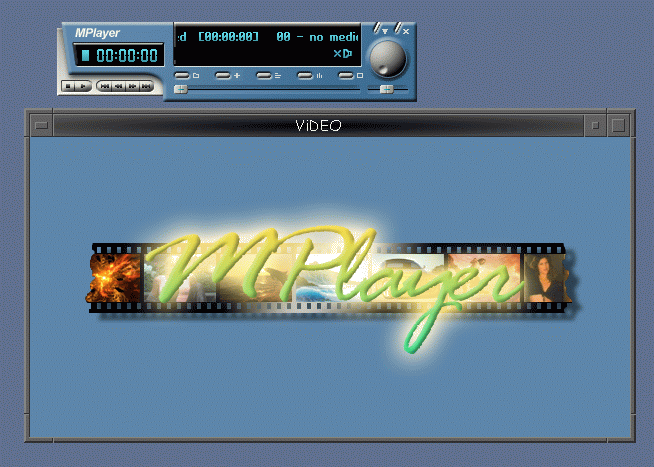
The standard installation includes several tools for playing MPEGs, DVDs, and other movie formats. The one I've used the longest is aviplay, but mplayer seems to be faster, and can do more. For playing a DVD, mplayer is the only choice. It can be run from the command line as mplayer, or in GUI mode as gmplayer. Middle-click in the movie window to see some menu options for playing a DVD!
Some other players, like plaympeg, xanim, and realplayer are installed as well, though mplayer can play almost all of these.
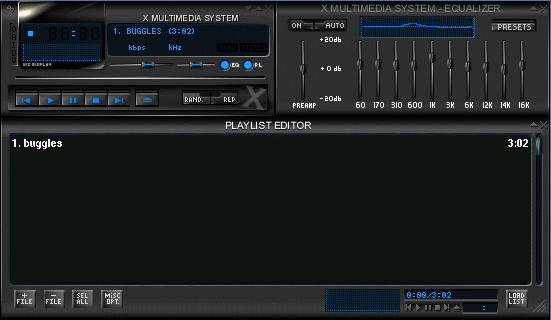
The standard MP3/streaming music player is xmms. The user interface is very tiny, but there's a (dark) ``D'' button on the left side of the main interface that doubles the size.
MP3's can also be played from the command line with program mpg123.
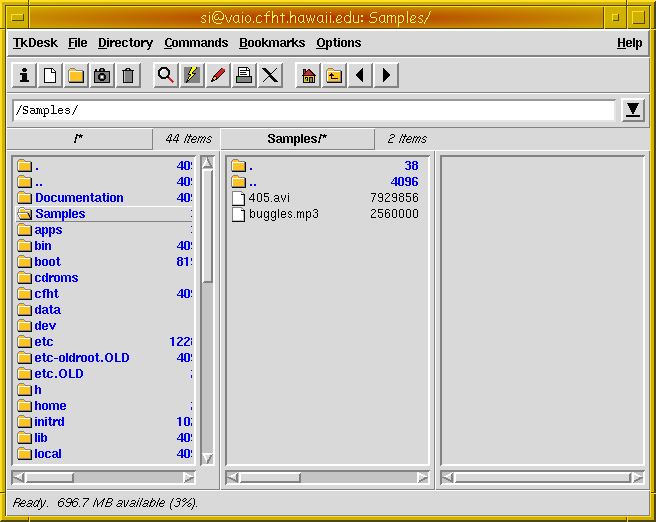
TkDesk is not very new, but it is a very functional graphical file manager. It has been configured to automatically launch the best application to play/process most types of files. Use right-click on a file to see alternate programs or modes.
The default Sidious version of Xvnc and vncviewer is actually tight-VNC, which supports additional modes of compression, but should be fully compatible with the original versions. The version as distributed by AT&T is also available, as Xvnc-att and vncviewer-att.
Under Windows, a vncserver can be started which gives vncviewer clients access to a ``normal'' Windows desktop. Xvnc does not work the same way under Unix, but there is a program called x0rfbserver which does the same thing.
This utility lets you control a Windows desktop that has vncserver running on it as a second monitor. Move the mouse off the edge of your Sidious desktop and the mouse and keyboard will control the Windows desktop!
This handy utility from DEC was the basis for x2vnc described above. With x2x, you can join two or three X11 servers into a multi-head configuration.