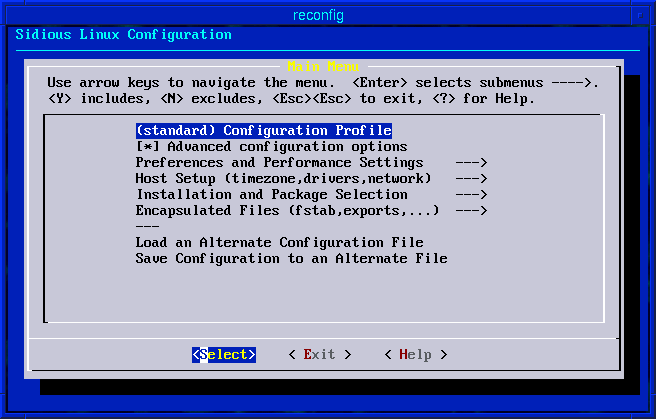
The reconfig utility.
Most Linux distributions provide their own front-end configuration tool that lets the user or administrator control features of the operating system. In the case of Sidious Linux, this tool is called ``reconfig'' and is started by clicking on the screwdriver icon, or by typing the command ``reconfig'' when logged in as root.
The /etc/sidious.config file.
For other Linux distributions, changing settings in a ``reconfig'' interface can be equivalent to having edited a host of other configuration files and databases (often limited to the /etc/ directory tree though.) This is not so in the case of Sidious Linux. The ``reconfig'' tool is strictly an editor for one single text file, called /etc/sidious.config. This one file fully describes your drive configuration (mount points and filesystems), hardware drivers settings, and services that are enabled. This single configuration file presents some handy benefits:
Even though all the information is stored in the /etc/sidious.config, the underlying components of Sidious have not been modified. They still look in the Linux-standard places for each configuration file. Each of these configuration files is generated on the fly, or extracted from the sidious.config. This happens automatically when ``reconfig'' has been run. If the sidious.config has been modified by direct editing, rather than using ``reconfig,'' then the script ``/etc/rc.d/rc.reconfig'' can be run (with no parameters) to apply the new settings manually.
For almost everything which might need configuration on your system,
Sidious Linux uses a single, text-based configuration utility
which can be run as root by typing ``reconfig''. Unlike configuration
utilities with other Linux distributions, ``reconfig'' only ever changes
one file on your disk: /etc/sidious.config. If you back up this
file (e-mail it to yourself, save it on a floppy, whatever) you have
backed up all of your system settings. The format of the
/etc/sidious.config is straightforward. There are only variable
definitions in bourne-shell syntax inside this file. But rather than
editing it directly, the ``reconfig'' program should be used to avoid
introducing errors. The utility also provides access to on-line help
for each option. The Main Menu of ``reconfig''
is shown in figure ![[*]](cross_ref_motif.gif) .
.
Be sure to customize the settings in reconfig to get optimal performance out of your machine. Initially, you will have a ``safe'' configuration (the same sidious.config from the CDROM) but you should should pay special attention to the first two options in reconfig: the profile, and advanced configuration options. These two settings can affect which subsequent settings appear.
Beginners: If you are starting out with a fairly ``normal'' computer, it is recommended that you de-select ``advanced configuration options''. This will cause reconfig to assume that you want all the high-performance options like DMA turned on (and that they don't cause a problem on your hardware). Only if you have a problem should you enable the advanced options and look through the additional menu items that appear. Most users will never need to do this!
Laptops: Suggested setting for Preferences->Console->APM batt. sleep is 660 seconds, or sleep after 11 idle minutes. Laptop users may also need to enable Host Setup->Services(local)->Blank screen with APM to get the backlight to turn off, though most new laptops do not have APM at all, and turn off the backlight with dpms.
Select Preferences->X-Windows->32-bit if you have enough graphics memory and want more accurate colors than the default 16-bit settings offers.
For a desktop or workstation, it is recommended to have a few hundred megabytes of swap space. Assuming you choose /dev/hdaM, where M is some partition number, the partition must be set to type 82 (Linux Swap) and prepared with mkswap /dev/hdaM. Sidious Linux runs reliably without any swap at all, but if your computer runs out of memory, the Linux kernel will begin killing processes.
Once a swap partition has been created, reboot or re-run /etc/rc.d/rc.reconfig which will automatically detect the newly formatted swap partition and begin using it. (Unless the SIDIOUS_SWAP_DETECT option was turned off with reconfig.)
If there is no partition available on your disk for swap space, or if more swap space is needed, the same procedure can be followed, except using a file. If the file is named /swapfile* or /local/data/swapfile*, it will be added automatically. Here is an example which adds 200MB of swap space using a file:
# dd if=/dev/zero of=/swapfile1 bs=1000000 count=200
# mkswap /swapfile1
# swapon /swapfile1
In order to use the software-suspend feature of the 2.4.19-si6 kernel, a real partition must be used, however (and the partition name must be entered in lilo.conf.)
There is no need to add a disk partition for /tmp/. Adding swap is equivalent since /tmp/ is not a RAM disk, but actually tmpfs. This can make use of all virtual memory, not just a fixed amount of RAM. Adding more swap partitions automatically increases the space available in /tmp/.
What!?, you didn't completely wipe Windows off your machine? Well, then here are some tips for you:
/dev/hda1 /C ntfs defaults 0 0
For Windows 98 and Me, you should have a ``vfat'' filesystem instead of ``ntfs'' and some computers come with the C: drive on a partition other than /dev/hda1 (hda2 and hda5 are possibilities.) Since the fstab file is encapsulated in /etc/sidious.config, you must edit it using the reconfig utility. Then run the following commands (only needed once)
# mkdir -p /C
# mount -a
Now your Windows files will be accessible in the directory /C.
What follows is a complete list of settings accessible through reconfig. Some settings only apply to Sidious 8.x (the embedded version). For Sidious 8.x, reconfig is also used as a mechanism for installation and package selection. For Sidious 9.x there is no such thing, hence all the settings which refer to installation options are not relevant to Sidious 9.x.
SIDIOUS_PROFILE
This option is meant to simplify configuration of certain types of hardware, and machines with certain purposes. If you have one of the types listed below, there may still be cases where selecting the "standard" profile, which reveals all configuration options, is necessary. The current selection for profiles is:
standard - This reveals ALL options. Use it when in doubt.
vaio-sr-laptop - Select it if you have one of these laptops to reduce the number of configuration choices.
generic-laptop - Right now, just equivalent to turning on pcmcia, screen backlight blanking, and power management.
iopener - Select if this is running on a i-opener.
gateway-touchpad - Select if this is running on a "GCT".
cfht-standalone, cfht-netclient, cfht-custom - These last three CFHT profiles force various settings that are appropriate for CFHT, including source-ing a /usr/local/lib/cfht-profile.local from /etc/bashrc. In the case of "cfht-custom" that is the only change, and otherwise this profile lets you see all the settings that "standard" does.
Profiles are added and maintained by hacking directly on the script /usr/bin/reconfig.in, by adding bourne-shell syntax if-statements around options that should not appear in various profiles.
Generally, select the "standard" profile.
SIDIOUS_ADVANCED_OPTIONS
If you say N here, it will reduce the number of subsequent options in the other menus, forcing many of them to sane defaults and hiding them completely.
If your IDE hardware has problems with DMA, you want to fine tune how the keyboard backspace is handled or have any other unusual needs, then say Y instead and additional options will appear in many of the menu screens.
For new users, it is recommended to say N here.
SIDIOUS_RECONFIG_BOOT
Say N here to stop this utility (which you are in now) from popping up each time the computer boots. You can still enter this utility at any time by running "reconfig" even if you say N here.
Say Y if you are setting up an un-configured disk image which should boot directly into "reconfig" the first time.
SIDIOUS_ROOT_CDROM
This is mainly used on CDROM images. If you say Y here, the boot process will be significantly slower, as the /etc/initrc script will attempt to load various PCMCIA and SCSI drivers to try and find a CDROM device. If the CDROM device happens to have a root filesystem, it will be used instead of the default one (usually, from /etc/fstab). Note that even if you say N here, a boot-able CDROM with its own Sidious configuration will still boot correctly.
You probably want to say N here, unless you are actually making the bootable CDROM itself.
SIDIOUS_IDE_DMA
Say N here only if DMA errors are reported for a hard drive.
Say Y for a significant performance boost for most IDE drives. Even if drive performance is not improved with DMA on, the CPU load during disk access will be lower, so it is best to say Y here unless you have buggy hardware.
SIDIOUS_IDE_DMA_DVD
If you have a DVD drive, you probably want to say Y here since without DMA, the drive is usually to slow to play DVDs. If you experience problems with the DVD, try setting this back to N.
SIDIOUS_IDE_DMA_CD
Unless you know your CD drive(s) are capable of using DMA properly, say N here to be safe.
SIDIOUS_IDE_MAXMULTSECT
Say Y here if you would like to try operating your IDE drives with the maximum supported multi-sector setting that hdparm can set. It should be safe, but does not typically help any, so this setting should only be used if you want to experiment.
SIDIOUS_IDE_32BIT_IO
Say Y here to use 32-bit I/O to access your IDE drives. Note that all data still goes through a 16-bit ribbon cable to your drive, so this may not help performance very much. Since it typically doesn't make a big difference, and since it causes problems on some IDE controllers, this option is considered experimental.
SIDIOUS_IDE_SPINDOWN
Say N if power saving by spinning down idle disks is not desired.
Say Y to set this as the initial spin-down time for all IDE disks.
SIDIOUS_IDE_NOFLUSH
Say N if you don't want want your disk to spin down at all.
Say Y only if you want to hold data that needs to be written to the disk until the next time the disk spins up. This is dangerous, because you could lose data if your computer crashes in this state. It should prevent things like Emacs auto-save from spinning up the disk, but note that it also defeats the purpose of autosave! Use with caution (and don't expect it to be a cure-all for limiting disk access.)
SIDIOUS_LIB_PRELOAD
Say Y to cause the initialization script /etc/rc.d/rc.boot to attempt to cache commonly used libraries, programs, and other files. Unless you have lots of memory (128MB or more), you should probably say N. Saying Y may help to prevent the hard drive from spinning up frequently during the period immediately after a reboot.
SIDIOUS_ULIMIT_ALLOW_CORES
Say Y to allow a program to leave a memory core image (crash dump) if something goes wrong. This is useful if you want to debug a program that is crashing, but note that if an application such as netscape crashes, it will also leave a potentially large "core" file on disk.
Say N to prevent any core files from being generated. If you say N, only the superuser can override this after boot.
SIDIOUS_SWAP_DETECT
This option is not set initially on CD installations, because the CD must not touch your drives until you tell it to do so. Once installed on disk, it is usually safe (and easiest) to say Y here. After that simply creating a swap partition (with the mkswap utility) and marking it as type "82" with fdisk (or cfdisk) is enough. The fstab provides an alternate way of defining swap partitions, with more control over priorities and other options. If any swap partitions are defined in fstab, this option has no effect. If in doubt, say Y.
SIDIOUS_SUPERMOUNT_CDROM
Say Y here and CDROMs with data on them will automatically appear on /mnt/cdrom/. You will also be able to press the eject button without having to unmount the CD first. This requires a kernel with the "supermount" patch. (2.4.19-smnt for example.) Ide-scsi is also required, so that the first CD drive always appears as /dev/sr0.
SIDIOUS_SUPERMOUNT_FLOPPY
Say Y here and floppies will automatically be mounted on /mnt/floppy. This turns off write-caching to the floppy, so when the light goes off, it is safe to eject. This requires a kernel with the "supermount" patch. (2.4.19-smnt for example.)
SIDIOUS_SYSLOG_SAVE
Normally, system log messages are sent to another server on the network (with Sidious Linux.) Whether there is another server available to receive messages or not, the most recent few messages also appear on the "blue" console, which you can view by pressing Ctrl-Alt-F6. Only the error messages from this screen are saved on the "red" console, Ctrl-Alt-F5. Once messages scroll off of one of these screens, they are lost.
Say Y here to save ALL messages since boot in /var/log/messages. If the /var filesystem is tmpfs, the log will get reset when the machine reboots.
Say N to only save log messages on the log server, or to prevent very large /var/log/messages files from forming on machines that stay up for long periods. (There needs to be a log rolling mechanism, but this is not yet implemented in Sidious Linux. If something starts generating a lot of syslog messages, this file may start to consume a lot of memory and nothing resets it except a reboot. N is the safe setting.)
Note that it is also possible to create a custom syslog.conf under Encapsulated Files.
SIDIOUS_X_AUTOSTART
It is usually fine to say N here, and use the Ctrl-Alt-Del keys to start the X-Server. If you have no keyboard, you'll have to log in on the text console and run "start-fvwm", so you might want to say Y in that case to have X start automatically. If there is a problem starting X, only one attempt is made to start the X servers even if you say Y here. Any servers which are not running can always be restarted at any time by pressing Ctrl-Alt-Del.
SIDIOUS_X_OPT
Some versions of the XFree86 servers have options which cannot be set from the XF86Config. If there is a need to pass any special options on the command line to start X, they can be set here. Most users will never need this and can leave it empty.
SIDIOUS_X_BIG_CURSORS
This changes the default cursor font so that all mouse-pointer cursors are more visible on high resolution screens, or LCD screens with very slow refresh.
SIDIOUS_X_SMALL_FONTS
Say Y to use a very limited font set, instead of the standard font path for 100dpi screens which is used by default.
Say N to use the normal fonts.
SIDIOUS_X_CLICK_FOCUS
If you prefer having to click on (any part of) a window to be able to type in that window, then say Y here.
However, most users prefer "focus follows mouse", where the active window is always the one in which the pointer is located, so you probably want to say N.
SIDIOUS_X_EDGE_RESIZE
Clicking on the corners of the window border will always resize a window (regardless of this setting.) Saying Y here will make the straight parts of the window border do the same thing. Say N for the default behavior, where the straight border sections can be used to raise or move the window, rather than resize it.
SIDIOUS_X_AUTO_RAISE
This is slightly buggy, and usually very annoying, so say N. But if you really want to have windows automatically raised after the cursor has stayed within the window for a (configurable) number of milliseconds, then say Y here.
XBPP8
If this setting is empty, no 8-bit server will be started.
If it is not empty, an 8-bit pseudo-color X-Windows session will run
on the Linux virtual console available by pressing Ctrl-Alt-F8, or
under the Desktop - Other X-Servers root menu on any other desktop.
There are four possibilities for the value of this setting:
Other X-Servers root menu on any other desktop.
There are four possibilities for the value of this setting:
1. "username" which appears in /etc/passwd or is valid in your NIS. This causes the user's session to be started immediately, without any need for a login or password. (This can be useful on embedded machines that need to run X but may not have a keyboard. It is also used on laptops if the extra security of a login prompt is not required.)
2. "xdm" causes a login/password prompt to be displayed. Any user in /etc/passwd or on NIS (if enabled) will be able to start a session (including accounts that have an empty password field; see /etc/X11/xdm/xdm-config.)
3. "chooser" displays a list of hosts willing to manage your display. NOTE: XDMCP indirect seems broken in XFree86 4.1.0. Use option 4.
4. "fully.qualified.hostname" displays the login/password prompt of another machine, assuming it is answering XDMCP queries.
XBPP15
If this setting is empty, no 15-bit server will be started. If then an 15-bit X-Windows session will be started on one virtual console.
NOTE: 16-bit is a more standard depth (5 bits Red, 6 bits Green, 5 bits Blue), so 15-bit mode is normally only needed if you have special hardware or programs that require "5-5-5" mode.
See help for XBPP8 (8-bit X-Windows) for more information.
XBPP16
If this setting is empty, no 16-bit server will be started. If this is set then a 16-bit X-Windows session will be started on one virtual console. 16-bit mode is useful if your display hardware or applications cannot handle 32-bit mode. 16-bit mode uses half the memory of 32-bit mode, and is usually faster for video applications also.
See help for XBPP8 (8-bit X-Windows) for more information.
XBPP24
If this setting is empty, no 24-bit server will be started. If this is set then a 24-bit X-Windows session will be started on one virtual console. 24-bit mode is not a commonly used mode, and may not be well supported by a lot of applications. For video applications which do support it, it has the advantage of having the same quality as 32-bit mode but requiring only 75 of the memory and screen copy bandwidth. On the other hand, some X-Servers do not support acceleration in 24-bit mode, so they may be significantly slower than 32-bit mode.
See help for XBPP8 (8-bit X-Windows) for more information.
XBPP32
If this setting is empty, no 32-bit server will be started. If this is set then a 32-bit X-Windows session will be started on one virtual console. 32-bit mode is the highest quality graphics mode supported by most graphics cards and X-Servers. You should try this mode first, and if it is too slow for video applications, or requires more memory than you have available, then experiment with the other modes.
See help for XBPP8 (8-bit X-Windows) for more information.
SIDIOUS_X_MANAGE
If you want X-Sessions from this host to appear on a chooser on another host, enter the hostname here. To manage X-Displays for an entire domain, you can also enter a string like *.domain.net. This (automatically) goes into an Xaccess file and causes xdm to be started in daemon mode when start-fvwm is run.
SIDIOUS_ROOT_RO
Normally you would say N here. There are a couple of reasons to say Y. Sidious will normally run fine with a read-only root partition, because /tmp /var and root's home directory are all on RAM disks or ramfs. So you could say Y here to be sure the filesystem is not being modified. If a program has problems writing to a file, you will see a "readonly filesystem" error. Run the script "rw" (which comes with Sidious) to temporarily allow writing to root, try again, and then run "ro" to go back to read-only.
The other reason to say Y here is to allow laptop hard disks to spin down. Normally, even a read-write filesystem that is not being modified will constantly cause disk access to update _access_ time stamps (the ones which can be seen by using 'ls -lu'. Saying Y here is a crude way to disable these time stamps. Some filesystems support a better way to just disable access times: add the "noatime" option for the root filesystem in /etc/fstab, and then say N here.
SIDIOUS_ROOT_SUSPEND_RO
Say Y here unless this feature is causing some problems. This only does something when the apmd is running. The root disk will be re-mounted read-only just before suspending. When power is resumed, the partition's mount options will be restored. This will prevent the need to check filesystems if battery power runs out while sleeping. (To re-mount other partitions read-only, check the script /etc/apmd_proxy and edit it manually.)
SIDIOUS_MOUSE_ACCEL
A value of 2 (or any invalid value) selects the default mouse pointer acceleration. A value of 0 turns off acceleration completely. There is no threshold value, because a custom version of the "gpm" mouse driver is being used, which has been modified to have gradual mouse acceleration instead of the crude acceleration implemented in X-Windows. For best results, make sure the mouse acceleration in X is turned off. The X-Server is started with "-a 1" in /usr/wm/bin/start-fvwm, so this should already be the case. Use the command "xset m 1" to be sure.
SIDIOUS_BLANK_APM
Say Y if you have a laptop and your screen's backlight does not go off with DPMS. Use of this option is discouraged on desktops, as it seems many APM BIOS implementations for desktops tend to crash while blanking the screen. This option seems to work well for most Sony vaio laptops, Gateway touchpads, and Netpliance I-Openers, so say Y if you have one of those.
SIDIOUS_BLANK_TIMER
Set this to the number of seconds without keyboard and pointer activity after which the display should be blanked and put in power-save mode. The default value is 600 (10 minutes).
NOTE for "xdm" users: While at the xdm login screen, the timeout is always less than 3 minutes. It only gets set to SIDIOUS_BLANK_TIMER when a user logs in.
Use a value of 0 to disable the screen blanker.
SIDIOUS_SUSPEND_HALT
If this option is selected, and a software suspend is not possible (typically due to the audio driver being in use and the apmd_proxy script not being able to unload it) then the machine will be halted instead. ALL WORK WILL BE LOST and the machine will reboot from scratch when it is powered on again!
Normally, say n here unless you have some sort of appliance which must go off every time the power button is pressed no matter what.
SIDIOUS_APM_TIMER
Set this to the number of seconds without keyboard and PS/2 mouse activity (as determined from /proc/interrupts) after which an APM SUSPEND event should be generated. See apmd_proxy "idle" to change this. Suspend mode is currently not entered with this timer if the power source is the AC line. The default value is 660 seconds.
Use 0 to disable the automatic suspend-on-battery timer.
See also SIDIOUS_NO_SLEEP and SIDIOUS_NO_SLEEP_LID below.
SIDIOUS_NO_SLEEP
The setting contains a list of process names, separated by spaces. If any program in this list is found to be running, the sleep timer event which normally triggers when the computer is on battery power and idle for a number of seconds (see SIDIOUS_APM_TIMER above) will be ignored. If a program in this list exits after the sleep timer event has already passed, note that the computer will never sleep if it remains idle.
SIDIOUS_NO_SLEEP_LID
See above (SIDIOUS_NO_SLEEP). This setting also contains a list of process names, separated by spaces. These are process names which override the sleep-on-lid closed function (implemented in the vaiojogd.)
This is useful if you want to play audio, for example, while the lid is closed. In that case, put the name of your audio player in this list.
SIDIOUS_BACKSPACE
By default, the Linux kernel sends a "Delete" ( ?) when one presses the key above enter which is usually labelled Backspace on the PC keyboard. By default, xterm and rxvt send ( H) instead. This is a long-standing problem and every flavor or installation of Unix tries to deal with it a different way (which can mean that even when you get it all working right, locally, you log on from a Sun or an HP and you might find things are broken again.)
Because Sidious is used in an environment that interoperates with Sun and HP a lot, the recommended solution is to say "y" here, and let your Backspace key generate H. It is not the default for a CD version of Sidious because on a very few rare systems, swapping the keycode has caused problems with the keyboard controller. Unless you see this, which is very unusual, it is safe to say Y here.
As of 9.38, /etc/profile looks at this setting and sets your default "stty erase" accordingly, but this only gets it right for the local console. It cannot guess what's correct for a remote machine.
SIDIOUS_BACKSPACE_EMACS
If you have said Y, as is recommended, to SIDIOUS_BACKSPACE, then you may also wish to say Y here. This settings causes the Control-H and Control-? keys to be swapped whenever "stty erase H" is true, and emacs is running in a non-window mode (e.g., "emacs -nw" or on the Linux console.) This setting does not affect emacs whatsoever in X11 mode.
(Emacs users are already painfully aware of this, but to those who do not know: Control-H is unfortunately also the "Help" key in Emacs.)
XEmacs, which can also be run with the "-nw" option, gets this right by default. It already checks your stty settings, and if Control-H is taken over by backspace, it accomodates that. This option just makes regular emacs do the same thing. If you don't know what to do, say Y.
SIDIOUS_CAPSSWAP
If your keyboard has the CAPS and CTRL keys reversed (from your preference) then say Y here and ignore what is written on the keys. X-Windows must be restarted for this setting to take effect.
SIDIOUS_CAPSCONTROL
If you never use CAPS lock and would like to have two CTRL keys, say Y here. X-Windows must be restarted for this setting to take effect.
HOSTNAME
Choose a hostname, made up of letters, digits, and '-'. Do not use '_', spaces, or dots here. Do not include the domain name in this entry (there should be no '.' used here.)
DNSDOMAIN
Set this to the default DNS Domain name. Make something up if you're not using DNS. Do NOT prefix this string with a '.'.
DNSSEARCH
If you want hostname lookups to check other domain names too, list them here (separated by spaces.)
NISDOMAIN
If your site uses NIS (not NIS+) then this can be set to the name of your NIS Domain (which may or may not be the same as your DNS Domain Name.) Even if you know what your NIS domain is, you probably want to leave this BLANK, which disables NIS on this computer.
In any case, do not fill in an NIS Domain name without also checking the settings in /etc/nsswitch.conf. The default settings in this file will give all users listed in your site's NIS database login access to this computer! If you don't want this, edit nsswitch.conf or leave this setting blank.
NISSERVERS
Set this to the name of your NIS master server if you want this host to become a slave server. Leave it blank to have ypbind fall back to broadcasting for an NIS server. Even if this is set to the name of your master NIS server, and that server does not list this host in the "ypservers" map, then this host will still fall back to broadcast mode, so it is always safe to fill in the name of the NIS master here, if you know it. Use the short hostname, e.g, "niu" at CFHT.
In summary: leaving this empty selects ypbind -broadcast mode. If set, this host will first determine if it should become a slave server and otherwise still fall back to broadcast mode.
SIDIOUS_DHCP
Say Y here if the network initialization scripts should first attempt to configure your IP address through DHCP. If no DHCP server is found, this will only delay network initialization by 12 seconds and the static IP will be used as a fallback, so it is always safe to say Y here.
SIDIOUS_DHCP_CONFIG
Say Y here and Sidious will attempt to load its main configuration
file, sidious.config. HOSTNAME by tftp from any DHCP server that
gives it an address. The installation CDROM uses this option so
that a machine can boot completely from the CD, using its own config
file if it is placed on the tftp server.
HOSTNAME by tftp from any DHCP server that
gives it an address. The installation CDROM uses this option so
that a machine can boot completely from the CD, using its own config
file if it is placed on the tftp server.
Once Sidious is installed, this option is usually turned off.
SIDIOUS_FLOPPY_CONFIG
Say Y here and Sidious will attempt to load its main configuration file from a diskette in the first floppy drive, as sidious.config. The installation CDROM uses this option to implement automated modes. This can be useful when re-installing. Place a copy of your current configuration on a DOS (or EXT2) formatted floppy as "sidious.config" or "sidious.con", and all settings from a previous installation will automatically be applied to the new install.
SIDIOUS_IPSETTINGS
Say Y here to explicitly set your assigned IP address, gateway address and DNS server. The settings in this section will only be used as a fallback if DHCP is also enabled.
NETMASK
The subnet mask is typically a value such as 255.255.255.0. Ask your system administrator if you do not know this value.
MYIPA
This should ONLY be set to your assigned IP address. Filling in a random number here, or a value which is not the IP address assigned to your computer can cause serious problems on your network. Please check with your system administrator before entering a value here.
GATEWAY
This is the IP address of the router which will act as a gateway to other networks.
NAMESERV
List the default nameserver IP address(es) here. If possible, PPP will add to this connection if it is able to determine nameservers from the dialup server. If not, list your PPP nameservers here (but try first without.)
NOTE: If DHCP is enabled, and if the DHCP server responds with its own DNS servers then those will be used for local lookups.
LOGHOST
Set this to the IP Address of a local Unix machine with a syslog daemon running in '-r' mode. If this is blank, syslog messages will still go to the console which appears when Ctrl-Alt-F6 is pressed, but will not be logged anywhere in a file.
TIMESERV
When your computer boots, before the network is available, it gets the time of day from the battery-backed hardware clock that is built into most PCs and laptops. (More on setting this hardware clock below. It is also known as the BIOS clock and CMOS clock.)
A Time Server enables your computer to synchronize the time of day whenever it has internet access. Enter the IP address of an NTP time server. Ask your system administrator for the name of a time server to use. Currently, it does not work to enter the host name. An IP address must be entered. To find the IP address of your server, once you know the name, use the command "nslookup" from a Terminal window. For example:
nslookup clock.somewhere.net
Server: xxxxx
Address: 123.123.123.123
Non-authoritative answer:
Name: clock.somewhere.net
Address: 1.2.3.4 **** This is the IP address.
_
Hostnames and IP addresses of NTP timeservers near you can also be found on this Web site:
http://www.eecis.udel.edu/~mills/ntp/clock2a.html
If you do not have a time server, or do not wish to run the xntpd, leave this entry blank.
Your timezone MUST be set correctly for this setting to work.
SETTING THE HARDWARE CLOCK:
Once your computer has synchronized with the time server, there is a command to write this accurate time back to the hardware clock. On some machines, this has caused crashes, so I do not recommend doing it from Linux. Instead, note down the time from:
date -u
The "date -u" command gives universal time, and this is what should go into your computer's hardware clock,
SIDIOUS_PROFILE
This option is meant to simplify configuration of certain types of hardware, and machines with certain purposes. If you have one of the types listed below, there may still be cases where selecting the "standard" profile, which reveals all configuration options, is necessary. The current selection for profiles is:
standard - This reveals ALL options. Use it when in doubt.
vaio-sr-laptop - Select it if you have one of these laptops to reduce the number of configuration choices.
generic-laptop - Right now, just equivalent to turning on pcmcia, screen backlight blanking, and power management.
iopener - Select if this is running on a i-opener.
gateway-touchpad - Select if this is running on a "GCT".
cfht-standalone, cfht-netclient, cfht-custom - These last three CFHT profiles force various settings that are appropriate for CFHT, including source-ing a /usr/local/lib/cfht-profile.local from /etc/bashrc. In the case of "cfht-custom" that is the only change, and otherwise this profile lets you see all the settings that "standard" does.
Profiles are added and maintained by hacking directly on the script /usr/bin/reconfig.in, by adding bourne-shell syntax if-statements around options that should not appear in various profiles.
Generally, select the "standard" profile.
SIDIOUS_ADVANCED_OPTIONS
If you say N here, it will reduce the number of subsequent options in the other menus, forcing many of them to sane defaults and hiding them completely.
If your IDE hardware has problems with DMA, you want to fine tune how the keyboard backspace is handled or have any other unusual needs, then say Y instead and additional options will appear in many of the menu screens.
For new users, it is recommended to say N here.
SIDIOUS_RECONFIG_BOOT
Say N here to stop this utility (which you are in now) from popping up each time the computer boots. You can still enter this utility at any time by running "reconfig" even if you say N here.
Say Y if you are setting up an un-configured disk image which should boot directly into "reconfig" the first time.
SIDIOUS_ROOT_CDROM
This is mainly used on CDROM images. If you say Y here, the boot process will be significantly slower, as the /etc/initrc script will attempt to load various PCMCIA and SCSI drivers to try and find a CDROM device. If the CDROM device happens to have a root filesystem, it will be used instead of the default one (usually, from /etc/fstab). Note that even if you say N here, a boot-able CDROM with its own Sidious configuration will still boot correctly.
You probably want to say N here, unless you are actually making the bootable CDROM itself.
SIDIOUS_IDE_DMA
Say N here only if DMA errors are reported for a hard drive.
Say Y for a significant performance boost for most IDE drives. Even if drive performance is not improved with DMA on, the CPU load during disk access will be lower, so it is best to say Y here unless you have buggy hardware.
SIDIOUS_IDE_DMA_DVD
If you have a DVD drive, you probably want to say Y here since without DMA, the drive is usually to slow to play DVDs. If you experience problems with the DVD, try setting this back to N.
SIDIOUS_IDE_DMA_CD
Unless you know your CD drive(s) are capable of using DMA properly, say N here to be safe.
SIDIOUS_IDE_MAXMULTSECT
Say Y here if you would like to try operating your IDE drives with the maximum supported multi-sector setting that hdparm can set. It should be safe, but does not typically help any, so this setting should only be used if you want to experiment.
SIDIOUS_IDE_32BIT_IO
Say Y here to use 32-bit I/O to access your IDE drives. Note that all data still goes through a 16-bit ribbon cable to your drive, so this may not help performance very much. Since it typically doesn't make a big difference, and since it causes problems on some IDE controllers, this option is considered experimental.
SIDIOUS_IDE_SPINDOWN
Say N if power saving by spinning down idle disks is not desired.
Say Y to set this as the initial spin-down time for all IDE disks.
SIDIOUS_IDE_NOFLUSH
Say N if you don't want want your disk to spin down at all.
Say Y only if you want to hold data that needs to be written to the disk until the next time the disk spins up. This is dangerous, because you could lose data if your computer crashes in this state. It should prevent things like Emacs auto-save from spinning up the disk, but note that it also defeats the purpose of autosave! Use with caution (and don't expect it to be a cure-all for limiting disk access.)
SIDIOUS_LIB_PRELOAD
Say Y to cause the initialization script /etc/rc.d/rc.boot to attempt to cache commonly used libraries, programs, and other files. Unless you have lots of memory (128MB or more), you should probably say N. Saying Y may help to prevent the hard drive from spinning up frequently during the period immediately after a reboot.
SIDIOUS_ULIMIT_ALLOW_CORES
Say Y to allow a program to leave a memory core image (crash dump) if something goes wrong. This is useful if you want to debug a program that is crashing, but note that if an application such as netscape crashes, it will also leave a potentially large "core" file on disk.
Say N to prevent any core files from being generated. If you say N, only the superuser can override this after boot.
SIDIOUS_SWAP_DETECT
This option is not set initially on CD installations, because the CD must not touch your drives until you tell it to do so. Once installed on disk, it is usually safe (and easiest) to say Y here. After that simply creating a swap partition (with the mkswap utility) and marking it as type "82" with fdisk (or cfdisk) is enough. The fstab provides an alternate way of defining swap partitions, with more control over priorities and other options. If any swap partitions are defined in fstab, this option has no effect. If in doubt, say Y.
SIDIOUS_SUPERMOUNT_CDROM
Say Y here and CDROMs with data on them will automatically appear on /mnt/cdrom/. You will also be able to press the eject button without having to unmount the CD first. This requires a kernel with the "supermount" patch. (2.4.19-smnt for example.) Ide-scsi is also required, so that the first CD drive always appears as /dev/sr0.
SIDIOUS_SUPERMOUNT_FLOPPY
Say Y here and floppies will automatically be mounted on /mnt/floppy. This turns off write-caching to the floppy, so when the light goes off, it is safe to eject. This requires a kernel with the "supermount" patch. (2.4.19-smnt for example.)
SIDIOUS_SYSLOG_SAVE
Normally, system log messages are sent to another server on the network (with Sidious Linux.) Whether there is another server available to receive messages or not, the most recent few messages also appear on the "blue" console, which you can view by pressing Ctrl-Alt-F6. Only the error messages from this screen are saved on the "red" console, Ctrl-Alt-F5. Once messages scroll off of one of these screens, they are lost.
Say Y here to save ALL messages since boot in /var/log/messages. If the /var filesystem is tmpfs, the log will get reset when the machine reboots.
Say N to only save log messages on the log server, or to prevent very large /var/log/messages files from forming on machines that stay up for long periods. (There needs to be a log rolling mechanism, but this is not yet implemented in Sidious Linux. If something starts generating a lot of syslog messages, this file may start to consume a lot of memory and nothing resets it except a reboot. N is the safe setting.)
Note that it is also possible to create a custom syslog.conf under Encapsulated Files.
SIDIOUS_X_AUTOSTART
It is usually fine to say N here, and use the Ctrl-Alt-Del keys to start the X-Server. If you have no keyboard, you'll have to log in on the text console and run "start-fvwm", so you might want to say Y in that case to have X start automatically. If there is a problem starting X, only one attempt is made to start the X servers even if you say Y here. Any servers which are not running can always be restarted at any time by pressing Ctrl-Alt-Del.
SIDIOUS_X_OPT
Some versions of the XFree86 servers have options which cannot be set from the XF86Config. If there is a need to pass any special options on the command line to start X, they can be set here. Most users will never need this and can leave it empty.
SIDIOUS_X_BIG_CURSORS
This changes the default cursor font so that all mouse-pointer cursors are more visible on high resolution screens, or LCD screens with very slow refresh.
SIDIOUS_X_SMALL_FONTS
Say Y to use a very limited font set, instead of the standard font path for 100dpi screens which is used by default.
Say N to use the normal fonts.
SIDIOUS_X_CLICK_FOCUS
If you prefer having to click on (any part of) a window to be able to type in that window, then say Y here.
However, most users prefer "focus follows mouse", where the active window is always the one in which the pointer is located, so you probably want to say N.
SIDIOUS_X_EDGE_RESIZE
Clicking on the corners of the window border will always resize a window (regardless of this setting.) Saying Y here will make the straight parts of the window border do the same thing. Say N for the default behavior, where the straight border sections can be used to raise or move the window, rather than resize it.
SIDIOUS_X_AUTO_RAISE
This is slightly buggy, and usually very annoying, so say N. But if you really want to have windows automatically raised after the cursor has stayed within the window for a (configurable) number of milliseconds, then say Y here.
XBPP8
If this setting is empty, no 8-bit server will be started.
If it is not empty, an 8-bit pseudo-color X-Windows session will run
on the Linux virtual console available by pressing Ctrl-Alt-F8, or
under the Desktop - Other X-Servers root menu on any other desktop.
There are four possibilities for the value of this setting:
1. "username" which appears in /etc/passwd or is valid in your NIS. This causes the user's session to be started immediately, without any need for a login or password. (This can be useful on embedded machines that need to run X but may not have a keyboard. It is also used on laptops if the extra security of a login prompt is not required.)
2. "xdm" causes a login/password prompt to be displayed. Any user in /etc/passwd or on NIS (if enabled) will be able to start a session (including accounts that have an empty password field; see /etc/X11/xdm/xdm-config.)
3. "chooser" displays a list of hosts willing to manage your display. NOTE: XDMCP indirect seems broken in XFree86 4.1.0. Use option 4.
4. "fully.qualified.hostname" displays the login/password prompt of another machine, assuming it is answering XDMCP queries.
XBPP15
If this setting is empty, no 15-bit server will be started. If then an 15-bit X-Windows session will be started on one virtual console.
NOTE: 16-bit is a more standard depth (5 bits Red, 6 bits Green, 5 bits Blue), so 15-bit mode is normally only needed if you have special hardware or programs that require "5-5-5" mode.
See help for XBPP8 (8-bit X-Windows) for more information.
XBPP16
If this setting is empty, no 16-bit server will be started. If this is set then a 16-bit X-Windows session will be started on one virtual console. 16-bit mode is useful if your display hardware or applications cannot handle 32-bit mode. 16-bit mode uses half the memory of 32-bit mode, and is usually faster for video applications also.
See help for XBPP8 (8-bit X-Windows) for more information.
XBPP24
If this setting is empty, no 24-bit server will be started. If this is set then a 24-bit X-Windows session will be started on one virtual console. 24-bit mode is not a commonly used mode, and may not be well supported by a lot of applications. For video applications which do support it, it has the advantage of having the same quality as 32-bit mode but requiring only 75 of the memory and screen copy bandwidth. On the other hand, some X-Servers do not support acceleration in 24-bit mode, so they may be significantly slower than 32-bit mode.
See help for XBPP8 (8-bit X-Windows) for more information.
XBPP32
If this setting is empty, no 32-bit server will be started. If this is set then a 32-bit X-Windows session will be started on one virtual console. 32-bit mode is the highest quality graphics mode supported by most graphics cards and X-Servers. You should try this mode first, and if it is too slow for video applications, or requires more memory than you have available, then experiment with the other modes.
See help for XBPP8 (8-bit X-Windows) for more information.
SIDIOUS_X_MANAGE
If you want X-Sessions from this host to appear on a chooser on another host, enter the hostname here. To manage X-Displays for an entire domain, you can also enter a string like *.domain.net. This (automatically) goes into an Xaccess file and causes xdm to be started in daemon mode when start-fvwm is run.
SIDIOUS_ROOT_RO
Normally you would say N here. There are a couple of reasons to say Y. Sidious will normally run fine with a read-only root partition, because /tmp /var and root's home directory are all on RAM disks or ramfs. So you could say Y here to be sure the filesystem is not being modified. If a program has problems writing to a file, you will see a "readonly filesystem" error. Run the script "rw" (which comes with Sidious) to temporarily allow writing to root, try again, and then run "ro" to go back to read-only.
The other reason to say Y here is to allow laptop hard disks to spin down. Normally, even a read-write filesystem that is not being modified will constantly cause disk access to update _access_ time stamps (the ones which can be seen by using 'ls -lu'. Saying Y here is a crude way to disable these time stamps. Some filesystems support a better way to just disable access times: add the "noatime" option for the root filesystem in /etc/fstab, and then say N here.
SIDIOUS_ROOT_SUSPEND_RO
Say Y here unless this feature is causing some problems. This only does something when the apmd is running. The root disk will be re-mounted read-only just before suspending. When power is resumed, the partition's mount options will be restored. This will prevent the need to check filesystems if battery power runs out while sleeping. (To re-mount other partitions read-only, check the script /etc/apmd_proxy and edit it manually.)
SIDIOUS_MOUSE_ACCEL
A value of 2 (or any invalid value) selects the default mouse pointer acceleration. A value of 0 turns off acceleration completely. There is no threshold value, because a custom version of the "gpm" mouse driver is being used, which has been modified to have gradual mouse acceleration instead of the crude acceleration implemented in X-Windows. For best results, make sure the mouse acceleration in X is turned off. The X-Server is started with "-a 1" in /usr/wm/bin/start-fvwm, so this should already be the case. Use the command "xset m 1" to be sure.
SIDIOUS_BLANK_APM
Say Y if you have a laptop and your screen's backlight does not go off with DPMS. Use of this option is discouraged on desktops, as it seems many APM BIOS implementations for desktops tend to crash while blanking the screen. This option seems to work well for most Sony vaio laptops, Gateway touchpads, and Netpliance I-Openers, so say Y if you have one of those.
SIDIOUS_BLANK_TIMER
Set this to the number of seconds without keyboard and pointer activity after which the display should be blanked and put in power-save mode. The default value is 600 (10 minutes).
NOTE for "xdm" users: While at the xdm login screen, the timeout is always less than 3 minutes. It only gets set to SIDIOUS_BLANK_TIMER when a user logs in.
Use a value of 0 to disable the screen blanker.
SIDIOUS_SUSPEND_HALT
If this option is selected, and a software suspend is not possible (typically due to the audio driver being in use and the apmd_proxy script not being able to unload it) then the machine will be halted instead. ALL WORK WILL BE LOST and the machine will reboot from scratch when it is powered on again!
Normally, say n here unless you have some sort of appliance which must go off every time the power button is pressed no matter what.
SIDIOUS_APM_TIMER
Set this to the number of seconds without keyboard and PS/2 mouse activity (as determined from /proc/interrupts) after which an APM SUSPEND event should be generated. See apmd_proxy "idle" to change this. Suspend mode is currently not entered with this timer if the power source is the AC line. The default value is 660 seconds.
Use 0 to disable the automatic suspend-on-battery timer.
See also SIDIOUS_NO_SLEEP and SIDIOUS_NO_SLEEP_LID below.
SIDIOUS_NO_SLEEP
The setting contains a list of process names, separated by spaces. If any program in this list is found to be running, the sleep timer event which normally triggers when the computer is on battery power and idle for a number of seconds (see SIDIOUS_APM_TIMER above) will be ignored. If a program in this list exits after the sleep timer event has already passed, note that the computer will never sleep if it remains idle.
SIDIOUS_NO_SLEEP_LID
See above (SIDIOUS_NO_SLEEP). This setting also contains a list of process names, separated by spaces. These are process names which override the sleep-on-lid closed function (implemented in the vaiojogd.)
This is useful if you want to play audio, for example, while the lid is closed. In that case, put the name of your audio player in this list.
SIDIOUS_BACKSPACE
By default, the Linux kernel sends a "Delete" ( ?) when one presses the key above enter which is usually labelled Backspace on the PC keyboard. By default, xterm and rxvt send ( H) instead. This is a long-standing problem and every flavor or installation of Unix tries to deal with it a different way (which can mean that even when you get it all working right, locally, you log on from a Sun or an HP and you might find things are broken again.)
Because Sidious is used in an environment that interoperates with Sun and HP a lot, the recommended solution is to say "y" here, and let your Backspace key generate H. It is not the default for a CD version of Sidious because on a very few rare systems, swapping the keycode has caused problems with the keyboard controller. Unless you see this, which is very unusual, it is safe to say Y here.
As of 9.38, /etc/profile looks at this setting and sets your default "stty erase" accordingly, but this only gets it right for the local console. It cannot guess what's correct for a remote machine.
SIDIOUS_BACKSPACE_EMACS
If you have said Y, as is recommended, to SIDIOUS_BACKSPACE, then you may also wish to say Y here. This settings causes the Control-H and Control-? keys to be swapped whenever "stty erase H" is true, and emacs is running in a non-window mode (e.g., "emacs -nw" or on the Linux console.) This setting does not affect emacs whatsoever in X11 mode.
(Emacs users are already painfully aware of this, but to those who do not know: Control-H is unfortunately also the "Help" key in Emacs.)
XEmacs, which can also be run with the "-nw" option, gets this right by default. It already checks your stty settings, and if Control-H is taken over by backspace, it accomodates that. This option just makes regular emacs do the same thing. If you don't know what to do, say Y.
SIDIOUS_CAPSSWAP
If your keyboard has the CAPS and CTRL keys reversed (from your preference) then say Y here and ignore what is written on the keys. X-Windows must be restarted for this setting to take effect.
SIDIOUS_CAPSCONTROL
If you never use CAPS lock and would like to have two CTRL keys, say Y here. X-Windows must be restarted for this setting to take effect.
HOSTNAME
Choose a hostname, made up of letters, digits, and '-'. Do not use '_', spaces, or dots here. Do not include the domain name in this entry (there should be no '.' used here.)
DNSDOMAIN
Set this to the default DNS Domain name. Make something up if you're not using DNS. Do NOT prefix this string with a '.'.
DNSSEARCH
If you want hostname lookups to check other domain names too, list them here (separated by spaces.)
NISDOMAIN
If your site uses NIS (not NIS+) then this can be set to the name of your NIS Domain (which may or may not be the same as your DNS Domain Name.) Even if you know what your NIS domain is, you probably want to leave this BLANK, which disables NIS on this computer.
In any case, do not fill in an NIS Domain name without also checking the settings in /etc/nsswitch.conf. The default settings in this file will give all users listed in your site's NIS database login access to this computer! If you don't want this, edit nsswitch.conf or leave this setting blank.
NISSERVERS
Set this to the name of your NIS master server if you want this host to become a slave server. Leave it blank to have ypbind fall back to broadcasting for an NIS server. Even if this is set to the name of your master NIS server, and that server does not list this host in the "ypservers" map, then this host will still fall back to broadcast mode, so it is always safe to fill in the name of the NIS master here, if you know it. Use the short hostname, e.g, "niu" at CFHT.
In summary: leaving this empty selects ypbind -broadcast mode. If set, this host will first determine if it should become a slave server and otherwise still fall back to broadcast mode.
SIDIOUS_DHCP
Say Y here if the network initialization scripts should first attempt to configure your IP address through DHCP. If no DHCP server is found, this will only delay network initialization by 12 seconds and the static IP will be used as a fallback, so it is always safe to say Y here.
SIDIOUS_DHCP_CONFIG
Say Y here and Sidious will attempt to load its main configuration
file, sidious.config.HOSTNAME by tftp from any DHCP server that
gives it an address. The installation CDROM uses this option so
that a machine can boot completely from the CD, using its own config
file if it is placed on the tftp server.
Once Sidious is installed, this option is usually turned off.
SIDIOUS_FLOPPY_CONFIG
Say Y here and Sidious will attempt to load its main configuration file from a diskette in the first floppy drive, as sidious.config. The installation CDROM uses this option to implement automated modes. This can be useful when re-installing. Place a copy of your current configuration on a DOS (or EXT2) formatted floppy as "sidious.config" or "sidious.con", and all settings from a previous installation will automatically be applied to the new install.
SIDIOUS_IPSETTINGS
Say Y here to explicitly set your assigned IP address, gateway address and DNS server. The settings in this section will only be used as a fallback if DHCP is also enabled.
NETMASK
The subnet mask is typically a value such as 255.255.255.0. Ask your system administrator if you do not know this value.
MYIPA
This should ONLY be set to your assigned IP address. Filling in a random number here, or a value which is not the IP address assigned to your computer can cause serious problems on your network. Please check with your system administrator before entering a value here.
GATEWAY
This is the IP address of the router which will act as a gateway to other networks.
NAMESERV
List the default nameserver IP address(es) here. If possible, PPP will add to this connection if it is able to determine nameservers from the dialup server. If not, list your PPP nameservers here (but try first without.)
NOTE: If DHCP is enabled, and if the DHCP server responds with its own DNS servers then those will be used for local lookups.
LOGHOST
Set this to the IP Address of a local Unix machine with a syslog daemon running in '-r' mode. If this is blank, syslog messages will still go to the console which appears when Ctrl-Alt-F6 is pressed, but will not be logged anywhere in a file.
TIMESERV
When your computer boots, before the network is available, it gets the time of day from the battery-backed hardware clock that is built into most PCs and laptops. (More on setting this hardware clock below. It is also known as the BIOS clock and CMOS clock.)
A Time Server enables your computer to synchronize the time of day whenever it has internet access. Enter the IP address of an NTP time server. Ask your system administrator for the name of a time server to use. Currently, it does not work to enter the host name. An IP address must be entered. To find the IP address of your server, once you know the name, use the command "nslookup" from a Terminal window. For example:
nslookup clock.somewhere.net
Server: xxxxx
Address: 123.123.123.123
Non-authoritative answer:
Name: clock.somewhere.net
Address: 1.2.3.4 **** This is the IP address.
_
Hostnames and IP addresses of NTP timeservers near you can also be found on this Web site:
http://www.eecis.udel.edu/~mills/ntp/clock2a.html
If you do not have a time server, or do not wish to run the xntpd, leave this entry blank.
Your timezone MUST be set correctly for this setting to work.
SETTING THE HARDWARE CLOCK:
Once your computer has synchronized with the time server, there is a command to write this accurate time back to the hardware clock. On some machines, this has caused crashes, so I do not recommend doing it from Linux. Instead, note down the time from:
date -u
The "date -u" command gives universal time, and this is what should
go into your computer's hardware clock,
em NOT the time in your
local timezone!) Next, you have to reboot, and early in the boot
process before Linux is loaded, enter your BIOS configuration utility.
On many computers, this is done by pressing F2 as soon as the computer
is turned on (or shortly thereafter.)
PRINTER
Set this to a print queue name and remote host name, for example:
lp@192.168.10.1
would select the print queue named `lp' on host `192.168.10.1'. After this, the commands:
lpr -Plp ...
lpr -Plp@192.168.10.1 ...
lpr ...
will all print to this remote printer, named `lp'. For more remote printer options, remove the /etc/rlprrc link and create a real one (see man page for `rlprrc' for more information. The syntax is simple.)
SIDIOUS_ETH_MIIDIAG
Watch the ethernet link status and automatically try to reconfigure the network whenever the link goes up. This can include attempting DHCP again, and all other steps which occur as a result of running the script /etc/rc.d/rc.inet. (One can also turn this option off, and run rc.inet manually when necessary. That must be done as root.)
This feature is useful for some laptops with both integrated ethernet and wireless. Unless you have one of those laptops, say n.
TZ
Set this to your local timezone. Some examples:
EST5EDT US Eastern with daylight savings.
PST8PDT US West Coast with DST.
HST10 US Hawaii (no DST.)
MET-1METDST Paris with daylight savings.
Check the tzset man-page on another unix host for others.
CMOS_UTC
Preferably, your BIOS clock should be set to UTC. If this is not possible, and the BIOS clock must use local time, check this box and Sidious will attempt to use the "clock" program to set the system clock appropriately. It is better to use UTC, since you will not have to reset your BIOS clock during daylight savings shifts. Say Y if you are able to do this.
Say N if your BIOS clock has to be set to your local timezone.
SIDIOUS_DAEMONS
Daemons, in the world of unix, are programs which run constantly in the background to provide some kind of services. Those which are services for other computers (i.e., "network" daemons) are in a separate category below, since they are the most likely to open up security vulnerabilities.
Other daemons provide services for local programs or manage special functions for hardware on the computer, often in conjunction with a kernel driver for that hardware.
Saying Y here only reveals which daemons are available, so only say N if there are no services required at all.
NETDAEM_INETD
Say Y to start the "inetd", which has been configured in /etc/inetd.conf to start the "telnetd" when a telnet connection is initiated from another machine.
It is highly advisable to say N here, unless you are behind a firewall which protects these insecure protocols, and can trust the users within your firewall.
Sidious 8 ONLY: Note that if no root password is set in /etc/passwd, remote logins through telnet are disabled, so it is actually more secure than having a root password. (This is a special feature of the Sidious 8 Linux telnet daemon.)
Note that other services like ftp, talk, rsh, and many others may be turned on in the /etc/inetd.conf. Most of these have been replaced with more secure protocols like ssh (see below.) If you still need some of the classic protocols, say Y here but you will need to manually configure each of the other protocols.
NETDAEM_SSHD
Say Y to start a version 1 SSH server. This is ssh-1.2.31 with a patch applied to work around a security hole discovered in Ferbruary 2001. Using the SSH protocol with key pairs, of which the "public" half is manually copied to the remote machine, is a very secure way to network machines.
Note that if no root password is set in /etc/passwd, remote logins through ssh are disabled, so it is actually more secure than having a root password.
SIDIOUS_CROND
Say Y to start a standard unix cron daemon. It will run as root, and look for jobs by username in the directory /etc/cron/crontabs/. This option is incompatible with network-booted disk-less clients. For those, see the next option instead.
SIDIOUS_CRONWAKED
The cronwaked monitors root's crontab entries and keeps setting a wake-up alarm that will turn on the machine in case it is suspended before a cron job needs to run. Say Y if you are using cron jobs things like wake-up alarms and for television recording.
This option currently does not work with ACPI or software suspend. See the following option for a work-around.
SIDIOUS_CRONWAKED_REBOOT
Since cronwaked is incompatible with software suspend and ACPI, this permits the apmd_proxy script to reboot the machine into a compatible kernel, and then suspend the machine (with APM, instead of ACPI, so it can be woken up.) If you say Y here, a reboot will happen only if ALL of the following are true:
1. A suspend is requested (due to idle timer, power button, etc.)
2. alarm_IRQ is set to yes in /proc/driver/rtc
3. There is no /proc/apm
4. There is a lilo entry called "sidious-noacpi"
A one-time boot into sidious-noacpi will be selected with lilo -R, and the machine will be rebooted. Presumably, after another 10 minutes (or whatever the idle period is) it will suspend again, in such a way that cronwaked can wake it in time for the cron job.
This option has no effect if you are already running a kernel with APM enabled (i.e., if /proc/apm exists.)
SIDIOUS_CROND_USERS
Set this to a space-separated list of usernames which may run cron jobs (as themselves only) on this host. For each of these users, $HOME/crontabs/$HOSTNAME will be checked for cron jobs. The crontab program has been modified so that a regular user attempting to run "crontab -e" will end up editing their own personal crontab for the current host.
All users wishing to run cron jobs must create /crontabs/ in their home directory, use "crontab -e" to create jobs for each host, and ask someone with superuser privileges to add them to this list of users with reconfig.
NETDAEM_NSCD
For Sidious 8, say N. There is no nscd with libc5.
For Sidious 9+, say Y to improve name lookup times. If a name lookup fails while some part of the network was down, and you want to remove that cached information, manually run /etc/rc.d/rc.inet which restarts the ncsd. If you have a reliable network connection and use NIS, you probably want to say Y here.
SIDIOUS_SENDMAIL
Say Y to run the standard sendmail daemon. See the help for the other options below to correctly configure sendmail for incoming and outgoing mail.
SIDIOUS_SENDMAIL_DELIVERY
If you use a local mail hub to handle all of your mail, and/or if you are a netclient with no convenient local storage to manage a mail queue, then select "synchronous" delivery mode. This is the default. Mail clients will not get a response until the mail is off of this machine, and (hopefully) safe in somebody else's queue or already delivered.
If /usr/spool is a local directory on disk, then "queueing" mode is also possible. If mail connot be delivered immediately, the mail client will be told that the mail was queued and sendmail will try to deliver the message in the background, every 15 minutes. This requires some secure disk space that will not be erased on a reboot or crash, and will cause disk access whether the message could be delivered right away or not (which is usually not a problem). If you use a local mail hub that is always up, you should probably use synchronous mode instead.
Finally, a third option "sync-with-flash-fallback" requires some DNS entries to work properly, and serves a very specific purpose. A normal "synchronous" sendmail will run on port 25, and a second, queuing sendmail will run on port 25 of a special loopback host called "smtp-queue.localdomain". IF the DNS records for a given domain list smtp-queue.localdomain as a secondary MX, then mail destined for that domain will be queued in /usr/local/spool/, but only if the primary MX could not be reached right away. This is intended for machines with a limited life-cycle flash disk which need to run a queue, but only want to use it if mail cannot be delivered right away. Mail destined for domains which do not list "smtp-queue.localdomain" as a secondary MX will behave the same as with the normal "synchronous" option.
SIDIOUS_SENDMAIL_HUB
If all this sendmail should do is forward every piece of mail on to a central hub, then enter the name of the hub host here. Note that this makes it impossible to receive mail locally here.
SIDIOUS_SENDMAIL_MASQUERADE
If you wish to hide this machine's host name and make mail appear as if it came from just the local domain name or mail hub host, enter that name here. For example, if this host is hacky.bar.com and you want mail to look like it came from you@bar.com instead of you@hacky.bar.com, then enter "bar.com" here. Leave this blank to allow your hostname to be visible.
SIDIOUS_RARPD
RARP is used by mostly simple, embedded devices to determine their IP address and possibly the name of a boot image to be fetched by tftp. It is similar, but more basic than BOOTP/DHCP. If this host should function as a RARP server, answering requests from other devices on the same subnet, say y.
In addition to saying y here, the "ethers" file must be set up with entries of the following format:
xx:xx:xx:xx:xx:xx AAA.BBB.CCC.DDD
where the first token is a hardware MAC address of a device, and the second token is the IP address you want it to use (in decimal.) Additionally, a file beginning with 8 upper case HEX digits may be placed in /tftpboot/ as a boot file for the device. (Hint: you can use "ipcalc -hex AAA.BBB.CCC.DDD" to display those HEX digits, where AAA.BBB.CCC.DDD is the dotted decimal IP address used in "ethers".)
For more information, see "man rarpd" and "man ethers".
SIDIOUS_TFTPD
TFTP stands for trivial file transfer protocol, and it is used mainly by embedded devices and disk-less clients to fetch files that they need to boot. If you say Y here, you should make sure there is no sensitive information in /tftpboot/ since anyone will be able to access it. It may also be helpful to turn on the firewall, which can be used to prevent the tftpd from being seen outside the networks you specify. See "man tftpd" for more.
SIDIOUS_DHCPD_GATEWAY
Say Y to start a DHCP server for 192.168.10.* and/or 192.168.0.* networks. This should be set if this host is a standardized 192.168.* router/gateway.
Also say Y to SIDIOUS_NAMED when using the default dhcpd.conf that will be generated automatically. The default dhcpd.conf tells dhcp clients to use this server for DNS.
Clients will be assigned addresses in the range 192.168.*.190 to 192.168.*.199, and can be looked up in DNS as node190 through node199.private or node199.wireless. To customize these names and assign them to clients with fixed MAC addresses, set the maximum number of fixed clients and enter their (short) host names and MAC addresses in the submenu that follows this option, or you can create your own complete dhcpd.conf under encapsulated files. (The latter gives the most control over domain names, IP addresses and all other parameters described under "man dhcpd.conf".)
SIDIOUS_NAMED
This option enables a local caching nameserver. The server will not do you much good unless you do at least one of the following:
1. Also be sure to set IP DNS Server (under host configuration) to "127.0.0.1" to cause local name look-ups to use this server.
2. To set up an authoritative server for your own DNS domain, create a directory /usr/local/named/pz/ and put primary zone files there (see the man page for named.) Be sure to remove emacs back-up files to avoid errors. All files in this directory, if it exists, are treated as primary zones.
NOTE: If DHCP is enabled, and if the DHCP server responds with its own DNS servers then those will be used for local lookups.
SIDIOUS_NFSD
Enable this option before making any entries in /etc/exports. The nfsd is never re-started automatically, so the script
/etc/rc.d/rc.nfsd
must be re-run manually, or the machine must be rebooted. Note that if only the /etc/exports encapsulated file has been modified, simply issuing the command:
exportfs -ar
should cause the changes to take effect.
SIDIOUS_NFSD_RMTAB
The "rmtab" keeps track of which clients have currently mounted a directory from this server. The default location, "/var/lib/nfs/rmtab" may be on a RAM disk or tmpfs with Sidious Linux, in which case it will be lost after a reboot, and most clients will not be able to recover automatically from this situation.
This setting allows you to specify an alternate location for the "rmtab" file. Since it keeps track of who is using the disk, it makes sense to keep it on the disk being exported. For example, if fstab contained a disk mounted on /local/data, and this disk was also exported to other machines, then setting this option to "/local/data/rmtab" would make not only /local/data, but any other exports from this machine survive a reboot or crash.
SIDIOUS_NFSROOT_SERVER
If another (possibly diskless) client machine is listed in /etc/dhcpd.conf, and has the correct ROM in its Ethernet card or an etherboot-floppy, the current host can act as an NFS-root server. Any number of clients can share the same root directory (read-only) and will use the same /etc/sidious.config unless a host-specific one exists. For the client, HOSTNAME and IP address will be overridden by information from the /etc/dhcpd.conf, and this setting (NFSROOT_SERVER) will be off for the client.
DO NOT TURN THIS ON unless you need it, since it starts many services which are otherwise not needed in a workstation machine (DHCP server, TFTP server for transferring the kernel, and an NFS server.)
SIDIOUS_SAMBA
Samba allows Windows clients to see files on your computer. If you say Y here, you can select one directory, and one printer that will be seen by windows clients on your network.
SIDIOUS_SAMBA_SECURITY
Security mode for samba must be either "user" or "share". Selecting "share" is the easiest and but also least secure. See the man page for smb.conf for more information.
SIDIOUS_NASD
Allow other computers on the network to send sound to your computer's sound card using NCD's network audio protocol. If you turn this on, you probably want to configure the firewall too, or else anyone may be allowed to connect. Sidious runs nasd without authentication.
SIDIOUS_OTHER_NETDAEM
List any other network daemons to be started in /etc/rc.d/rc.inet. Separate them by spaces, and give the full path if they are not in /usr/sbin/ or some other standard location. Most users will leave this blank.
SIDIOUS_FW_MAC_CLIENT
Do not enable this option unless you know the MAC address of every wireless access point from which you may wish to receive packets. If you say Y, you must also enter all of the MACs in the "trusted-hw" list above or your network will not function.
SIDIOUS_FW_CATCHALL
If no iptable entries match, the firewall will DROP the packet because that is the default "policy" that is set for OUTPUT, INPUT, and FORWARD. Specifying a final catch-all rule for each has several effects:
1. Users cannot add their own firewall tweaks after rc.firewall has run.
2. Packets which fall all the way through are logged instead of dropped.
If you need to add your own port forwardings or poke extra holes in the firewall, you will need to turn this option OFF. You also need to somehow make sure that your script re-runs each time after rc.inet/rc.firewall get re-run. If you don't need custom rules, say y because it is more secure to have catch-all rules in place.
SIDIOUS_FW_OTHER
Set this to any list of space-separated TCP ports on which you want to run a server. A range of ports in the form low:high as iptables uses can also be specified. Once a value is entered for this setting, additional options appear to control which subnets can use the "OTHER" services.
For example, if your rc.local starts "statserv", which uses port 909, then set this to 909 and more options will appear below. In those options, select the external hosts and subnets which should be allowed to access 909.
If your rc.local starts apache httpd, you might need to set this to "80 443", which lets both http:// and https:// in from the hosts and networks you select in the options below.
SIDIOUS_APMD
The power management daemon uses the script /etc/apmd_proxy, which can be customized to perform various functions when power state changes. This option applies only to full installations. For flash disk and self-installing configurations, say N.
SIDIOUS_CARDMGR
The card manager watches the PC card (PCMCIA) slots on your laptop and dynamically loads the correct support into the kernel when a card is inserted. Say Y for laptops with PC card slots.
SIDIOUS_VAIOJOGD
As the name implies, this custom Sidious Linux daemon should only be used on Sony Vaio with Jogdials. When this daemon runs, the jog dial will control the screen brightness and the master volume (control other mixers through the mixer application in the root menu.) To toggle between the brightness and volume functions, press on the jogdial.
In addition to watching the jogdial, this daemon will watch the "lid switch" on your Vaio and cause the laptop to sleep when the lid is closed.
SIDIOUS_OTHER_DAEMONS
List any other programs, separated by spaces, which should be started at boot. If they are not in /usr/sbin/ or a standard location, give the full path. See also the setting for other network daemons. If a process is specifically network related, it should go there instead of here. Most users leave this blank.
SIDIOUS_DRIVER_SUPPORT
Say Y here if you are using a modular kernel and wish to load extra kernel drivers at boot time.
SIDIOUS_LINMODEM
Say Y if you have software modem using either the Conexant or Lucent chip sets. Only one lucent modem, and an HSF modem in a Sony Vaio have been tested. Checking this option only affects the "ppp" dialup script. It will try to load support for some known linmodems before trying /dev/modem if you say Y here.
SIDIOUS_FS_VFAT
Say Y if you have a "vfat" filesystem on your hard drive and would like to read/write it from Linux.
SIDIOUS_FS_NTFS
Say Y if you have an "ntfs" filesystem on your hard drive and would like to read it from Linux. Always mount these with "-o ro" to ensure that you do not write to them, as the write-support in Linux NTFS is considered experimental, and could corrupt your files!
SIDIOUS_RTC
It is recommended to say Y here. Some programs require the rtc, and others like "mplayer" will just function better if it is available.
SIDIOUS_CDROM
Say Y here to load kernel modules that will make your IDE CDROM drive look like a SCSI device. CD burning software requires, and in general it just makes things easier because your CDROM drive will always be "/dev/sr0", rather than depending on the IDE port to which it is connected.
SIDIOUS_MODULES_MOST
This installs all USB modules, NFS support, and anything else you decide to add to this function (see /Makefile.conf and search for SIDIOUS_MODULES_MOST.)
PPP_COMPRESS
Say Y here to have PPP try to negotiate "deflate" or "bsdcomp" style compression. The required modules must exist for this to work (they are selected at build time, later in this configuration script.) If the modem serial port experiences a lot of lost characters or transmission errors, it is better not to enable this option, because it does not always recover gracefully from severe modem problems. (These problems exist on v3 I-Openers, so say N.)
PPP_CHAP
Say Y here if your PPP server uses "CHAP" for authentication. Usually, the correct answer is "N", but if you cannot get a connection, it is worth trying to say Y here. This option does NOT work with the CFHT modem pool and many other dial-up services. Leave it off if you use one of those.
PPP_ALWAYS_ON
Say Y here if you want the PPP connection to be automatically dialed when the computer boots and when the connection goes down. To kill the PPP connection, change this setting in /etc/sidious.config (or unplug the phone line.)
PPP_COMMAND
Many terminal servers need to be given a command string like "ppp" to initiate a PPP connection. Some may need a different command, such as "ppp negotiate". Dial up manually (with a program like minicom) and check the help information for your terminal server if the string "ppp" does not work.
SIDIOUS_FAX
Say Y to run a "vgetty" process on your modem which will turn it into an answering machine (if it supports voice functions) and a FAX machine (if it supports FAX functions.) Voice messages will be left as ".rmd" files in /usr/local/voice/incoming and can be played back with the "rplay" utility. To change the outgoing message, or to check your messages remotely, you must first create a password. Use the "voicepasswd" command to set the initial password. Then call from another phone and press * during the greeting. When prompted for the password, enter the digits you gave to "voicepasswd", followed by the pound key. You will then be presented with the following options:
1:play-message 2:keep-and-play-next 3:erase-and-play-next 4:rec-personal-grt 5:reset-personal-grt 6:play-personal-grt 7:rec-main-greeting 8:reset-main-greeting 9:play-main-greeting
(Personal greetings are not enabled unless you edit the script /etc/mgetty+sendfax/answering_machine.sh and create mailboxes.)
FAX messages are currently left in /tmp/ and can be viewed with "viewfax" or printed with "g3tolj" or "g3tops". Try adding the -r option to these programs if received faxes appear completely garbled.
SIDIOUS_FAX_STATIONID
Even if you will only be receiving faxes, it is a good idea to put your own phone number in this setting. Some modems only allow plus (+), space, and digits here. This string is sent to the other FAX machine and should contain your own FAX number.
SIDIOUS_VPN
This enables both a VPN on virtual ethernet device tap0: and an ssh tunnel connection over which all the traffic goes. The ssh tunnel may also include a fixed port on the remote machine through which access to this machine's sshd is given. Also say Y here if you only want the reverse ssh tunnel without the full VPN connection.
SIDIOUS_VPN_TUNNEL_HOST
This is a hostname and a port number. The hostname can be either an IP address or a name. If the port number is omitted, port 22 (the default for SSH) is assumed. /etc/rc.d/rc.vpn will attempt to establish and maintain an SSH connection to this host and port in order the facilitate the reverse ssh tunnel and/or the VPN. This setting is required.
SIDIOUS_VPN_TUNNEL_USER
This is the username which runs the ssh tunnel. An account for this user must exist at the remote end. The ssh key (in the following setting) must be accepted without any passphrase since the connection is automatically established. This setting is required.
In the setting below this, the ssh-key must be provided in uu-encoded form. To generate this, run "uuencode" on the _private_ key file, not the .pub, as "uuencode keyfile -". Then cut-and-paste that into the Encapsulated file in the next setting. It will be saved in the sidious.config. Keep the sidious.config read-only, and in a safe place.
SIDIOUS_VPN_REVERSE_PORT
If this option is set, it specifies a listening port number on the remote machine (the one targetted by the previous setting, SIDIOUS_VPN_TUNNEL). Users with access to that machine will gain access to the ssh daemon on this machine through that port. Leave blank if you don't want this.
SIDIOUS_VPN_PORT_IN
This option specifies a listening port already expected to be open on the remote host, and connects it to a local listening port (usually a different number, set by the next option) so that tapswitch can use the ssh connection. The default port Sidious uses for VPN services is 930.
SIDIOUS_VPN_PORT_OUT
This option specifies the port number to use locally. It can be any available port, but port numbers below 1024 have additional security in that a regular user may not listen on those ports. Since the Sidious VPN consists of two parts, and ssh tunnel and the userspace daemon, a user could otherwise theoretically intercept traffic by opening the port before ssh. For this reason, the default port is 931.
SIDIOUS_VPN_MAC
Set this to the Ethernet (virtual) hardware MAC address this client's VPN tap0: should use. In most cases it is best to leave blank and a random MAC will be generated.
The MAC address is of the form xx:xx:xx:xx:xx:xx where "xx" are octets in hexadecimal (see ifconfig.)
SIDIOUS_VPN_DHCP
Say Y to use DHCP to configure the VPN. For point-to-point VPNs where neither end is running a DHCP server, static addresses may be required. For more complex VPNs this option should be enabled to allow the DHCP server on the central VPN node to configure the clients. If this is used in combination with a randomly generated MAC, this even allows multiple identically configured clients to join the VPN from different locations.
SIDIOUS_VPN_STATIC
Say Y to specify a static IP address for the VPN interface. If both DHCP and Statis IP are selected for the VPN, the static IP will be used as a fallback if no DHCP responses are received within about 15 seconds (same behavior as doing this for a real Ethernet connection.)
SIDIOUS_VPN_NETMASK
Set this to the subnet mask (e.g. 255.255.255.0) which should be used when the VPN is configured with its static IP.
SIDIOUS_VPN_MYIPA
Set this to the fixed IP address to use whenever the VPN is not configured by DHCP.
SIDIOUS_WIRELESS
Say Y here to configure options for three IEEE802.11 wireless drivers. This allows you to set the SSID string and other options for these drivers.
Note that defaults for wireless are to use the maximum power levels avaiable. If you don't want to get cancer from your wireless card, you may want to select a lower power level if you are close to the access point. This, combined with turning on the power-saving mode may help extend laptop battery life. Some options are only supported by a few drivers.
SIDIOUS_WIRELESS_INFRASTRUCTURE
Say Y here if your site uses an access point.
Say N if you have a point-to-point or ad-hoc demo mode network.
This may not work correctly for every type of wireless card.
SIDIOUS_WIRELESS_MASTER
Say Y if you are building an access point. Normally, say N.
SIDIOUS_WIRELESS_PSP
This only has an effect on the Cisco aironet driver at the moment. Say Y here if you have a laptop and want to conserve battery power.
Say N if you are setting up a desktop or access point that should be operated in "constantly awake mode."
SIDIOUS_WIRELESS_XMIT
This only has an effect on the Cisco aironet driver at the moment. For laptops, set this to low to conserve battery power.
For maximum range, set this to high. The maximum output on the aironet is 100 milliwatts, which is probably excessive. You certainly don't want a laptop using this power setting if it isn't necessary. The health danger of keeping a high powered transmitter close to you is not well understood.
SIDIOUS_WIRELESS_IPADDR
To use a specific IP address for wireless interfaces, enter it here. Leave this blank to use the settings from Static/Dynamic IP menus.
SIDIOUS_WIRELESS_GATEWAY
Set this to the IP address of the access point or router on the wireless network. Leave it blank if this host will be the router.
SIDIOUS_WIRELESS_SSID
Set this to the network name or SSID for your network.
SIDIOUS_WIRELESS_KEY
Set this to the encryption key, if your wireless network uses WEP. Leave this blank if your wireless network does not use encryption. See the man page for "iwconfig" for more information.
SIDIOUS_CFHT_MAINTENANCE
This option is used mainly during RAID recovery when it is undesirable to have people logging in and using disks locally, or using disks on this machine remotely through nfs. Therefore, this option disables inetd, nfsd, and moves sshd to port 2267. Say y while working on the machine. Say n to make it available on the network again.
SIDIOUS_DEVELOPMENT
There are two versions of Sidious Linux (8.x and 9.x). See /Documentation/ReleaseNotes for details. If you are configuring a full Linux installation, you probably want to say Y here.
Say N to generate a Sidious 8.x self-installing compressed disk image based on libc5.
SIDIOUS_HD
Set this to the device name (usually a hard drive or flash disk) where Sidious will be (or is) installed. For example, if installing Sidious on an I-Opener, the internal flash disk is "/dev/hdb". To install Sidious on a floppy, set this to "/dev/fd0", and finally to install Sidious on a partition of your first hard drive, set this to "/dev/hda".
The partition number for Sidious 9.x installations is given in the next setting.
SIDIOUS_ROOTDEV
This should start with the same device number given for the device name in the setting above, plus a partition number. For example, to install Sidious on your "D:" drive, you will need to use fdisk to find out the partition number and set this to something like "/dev/hda2" or "/dev/hda5" (fdisk will show you how the disk is actually partitioned.
SIDIOUS_ROOTFS
Unless you have manually formatted your root partition with another filesystem type, this should be set to the Sidious default, "xfs".
SIDIOUS_ROOTOPTS
This is a comma-separated list of "mount" options. Some of these only take proper effect when the initrd method of booting is used.
Useful options for laptops with XFS are: "noatime,osyncisdsync"
Desktops which don't spin down their hard drives may want to leave this blank.
SIDIOUS_ETCSIZE_KB
"make install" will generate a partition table with two equally sized partitions 1 and 2 at the beginning of the disk (one for the kernel and the other for essential binaries and libraries needed to connect to the network. To keep things easy to move around during diskless upgrades, both these partitions will be the same size (except the first partition will be one sector shorter because of the MBR.) Set the *minimum* size for either of these partitions here, in units of kilobytes. 720 is the recommended value, but if you really can't fit the kernel into that space, you may have to increase this number.
SIDIOUS_EQUAL_SIZE
This option is obsolete. If turned on, it forces root and /etc to be the same size in blocks on the disk. This was intended to facilitate upgrading an installation piece-wise. It is easier to just re-install the entire disk image. Say N.
/tmp and /var filesystem type SIDIOUS_TMPFS
If you have set up a separate disk partition for /tmp and /var each (you cannot set up just one of the two this way) then select the filesystem type for that partition. XFS and EXT2 are the only choices.
Alternatively, you could select "root" which will leave /tmp and /var on the same filesystem as the root filesystem. Note that this only works if you have write-access to your root filesystem. Net-boot clients do NOT have this, and should use the "tmpfs" option. If you need more space in /tmp or /var, simply define more swap partitions and/or files and the space available in /tmp will grow proportionately.
The main advantage of selecting "root" (or "xfs") is that the system log file, /var/log/messages, will not be lost on a reboot. If in doubt, choose the default here, tmpfs.
SIDIOUS_ROOT_PASSWD
The default initial /etc/passwd file on the Sidious image contains no root password. Currently, the only ways to get into the machine remotely are through ssh and telnet. While both of these daemons are configured to allow root logins directly from the network, they do not permit logins for accounts with no password at all. If you say N here, it is actually quite secure from the network, since no network logins are permitted until you set a password.
Say Y if you want to install /etc/passwd.preset from the Sidious install tree instead. (It is possible to edit this file manually before installing to add your own encrypted password.)
SIDIOUS_RECONFIG
Say Y to include the menuconfig utility you are using right now so that the settings in /etc/sidious.config can be changed from a menu interface. This may enlarge the disk image by over 150K, so it is recommended to say N and reconfigure by editing the file manually instead if you want to save space.
SIDIOUS_IOFLASH
Say Y to include the ioflash utility and a new BIOS image for the I-Opener. Because this program will probably only be used once, it will get installed in the uncompressed /usr/local/bin/ partition so it can be removed after it is no longer needed. The flash image(s) can be found in /usr/local/lib/*.ioflash
SIDIOUS_UNIX
Many of these already exist as part of the busybox program. If everything here is turned off, the system will still boot and still will have minimal versions of the basic commands listed below.
Say Y here if you want a more complete, standard unix environment.
SIDIOUS_MODULES
This adds the module utilities (insmod, rmmod, and lsmod) and enables other features below which require modules. Say Y.
SIDIOUS_MODULES_ALL
If you say N, only those modules that you have said Y to under
Host Configuration-Activate Drivers will be installed. If you
try to activate one of the drivers later, or build some kernel
modules for which no 'Activate Drivers' option exists, the module
will NOT be available on the disk image.
Say Y if you have the disk space. With the custom kernel, you can then turn off any modules you think you will not need under 'Kernel Configuration'. (If you say N here, there is no point in doing that though, since those extra modules will not be installed on your disk image anyway.)
SIDIOUS_GPM
This is used for both console and X-Windows mouse support.
Say Y unless you don't have a mouse.
SIDIOUS_FDISK
Unless you need to repartition a disk with this installation, say N.
SIDIOUS_LILO
If you ever need to install a new kernel for this installation, or if you plan to use this installation to make another disk bootable, say Y, otherwise say N.
SIDIOUS_HDPARM
This is required to override disk spin-down times and other default disk parameters set by the BIOS and the kernel. If you need to change the spin-down time of a drive, or change the IDE DMA setting of a drive or controller, say Y.
SIDIOUS_QUIET
This is mostly useful if you do not run the syslogd/klogd. Unless you want to suppress extra console feedback, say N.
SIDIOUS_SYSKLOGD
Without this option, syslog messages will be lost and klog messages will print on the console (or will only be accessible using the "dmesg" command if "Quiet console logging" is selected. This option also enables the possibility to send log messages to a remote host (aliased to "loghost" in /etc/hosts.)
Unless you are really trying to save space, you should probably say Y.
SIDIOUS_XF86_VIDEORAM
This must be set for Auto-Detect for most non-AGP graphics cards!
For AGP video cards, set this to the amount of video memory you want to use if the "Auto" setting does not allocate enough for your purposes. (The default amount for i810 graphics cards currently seems to be 8 Megabytes, which is enough for 32-bit up to 1600x1200, but not including video overlays. If "mplayer -vo xv" is not working, or if you want to use double-buffering, you may find it useful to increase the VideoRam setting to 16 Megabytes. WARNING: If you exceed the amount of memory available for graphics, X-Windows may fail to start!
SIDIOUS_XF86_HSYNC
Set this to the range of horizontal sync values which your monitor can handle. Check the manual for your monitor, or set this to "auto" to try to auto-detect this. Values must be in KHz. A typical example is "28-62".
SIDIOUS_XF86_VSYNC
Set this to the range of vertical refresh values in Hz which your monitor can handle. Check the manual for your monitor, or set this to "auto" to try to auto-detect this. A typical example is "43-72".
SIDIOUS_UPS
Do not enable this option unless you actually have a UPS connected to your serial port. With the right settings, your machine will be gracefully shut down when your personal UPS runs out juice during a power failure. If the port or UPS type is wrong, or if the UPS is not connected, your machine may reboot constantly until the UPS is connected!
SIDIOUS_RC_LOCAL_RERUN
This option can be useful for two things: First, if you want to run /sbin/hotplug, when your rc.local is run from /sbin/hotplug it will have access to all of the same command line arguments that the kernel passes to hotplug (since it is simply source'd at the end of /sbin/hotplug.) This allows rc.local to act as a hook for device specific initialization.
The second use for this feature is a way to re-establish settings or daemon processes which rc.reconfig or rc.inet may end up clearing. For example, an rc.local which starts a dhcpd on a second ethernet interface will need to be re-run any time rc.inet has run since rc.inet kills and and all dhcpd's. This is just one example of the type of thing rc.local might want to be given the chance to re-establish.